STEP 2: INSTALLING / UPDATING THE CAC READER DRIVER |
||||||||||||||||||||
Plug in your CAC reader NOWNOTE: Please check and make sure your CAC reader installed BEFORE you attempt to follow the driver installation instructions below. Most of the time, the New hardware wizard will install the CAC reader automatically, negating the need for you to install the driver manually.To Verify whether your driver did or did not install, follow these instructions: Plug your CAC reader into your computer before proceeding Windows 11: Right click the Windows logo (left most icon of row of icons in bottom center of your screen). Click Device Manager, scroll down to Smart card readers, select the little triangle next to it to open it up. If your smart card reader is listed, go to the next step of installing the DoD certificates. Windows 10: Right click the Windows logo (lower left corner of your screen). Click Device Manager, scroll down to Smart card readers, select the little triangle next to it to open it up. If your smart card reader is listed, go to the next step of installing the DoD certificates. If it did not install correctly... Try this first: Go to Device Manager (Instructions are above), scroll down to Smart Card readers, right click the CAC reader that shows up below Smart Card Readers. It can also show up under unknown devices. Select Uninstall. It will give you a message. Once it is uninstalled, unplug the reader from your computer. Wait a few moments, then plug it back in. It "should" start to install itself. If that doesn't work, keep reading for other ideas below. IF you do not see Smart card readers when checking, THEN follow along with the steps below. To install a driver onto your computer for a CAC reader, you need to first download the correct driver for the hardware you purchased, I have drivers for the most common USB Readers, Keyboard, laptop, & desktop card readersPROCEED TO STEP 3 ONCE YOU'VE COMPLETED YOUR VERIFICATION OR INSTALLATION Unzipping - the driver Windows 11 or 10 - Save the zip file to a location of your choosing. Once you have the zip file downloaded, open the zip file (Windows built in zipping program). Copy the folder inside to a new folder. It will unzip the contents, (this is the folder you will need when you are doing the steps below). You can also use the Extract All Files button (on the left under Folder Tasks, under File, Extract All). It will then ask where you want to save the file. I recommend placing a backslash ( \ ) at the end of the location on the screen. WinZip- Use the Extract button. It will ask you where you want to save the extracted files to, I recommend your desktop. Click the desktop icon on the left. Push the little yellow folder in the upper right corner of this active window. It will prompt you for a name for the folder (type in CAC Driver). Hit OK, then select Extract (lower right corner of this window). You should now see your new folder on your desktop to open up. Keep this for a later step. Updating the Driver - Example is for an SCR-331 Windows 11 or 10 - Right Click Computer, Select Properties Click the Device Manager link (on the left side of your screen) Select the triangle next to Smart Card Readers Right click the SCRx31 USB Reader, select Update Driver software Browse my computer... Select Browse, then desktop (or wherever you made the folder) NOTE: One person had to select "Search automatically for updated driver software" (This is very rare) Select the folder (if using the firmware update driver below, stop at the driver folder, do not 'dig' down to AND or Intel folders) and then OK. Next Your driver will be installed.
FIRMWARE
UPDATE
for
(Requires a physical Windows computer, Mac using Bootcamp. It will NOT work in virtual Windows (examples: VMware, Parallels, or Virtual box)).
Verify your firmware version before going through this process... 1. Go to Device Manager, type: device manager in the search box 2. Select the arrow next to Smart card readers 3. Right click on SCR33x USB Smart Card reader 4. Select Properties 5. Select Details (tab) 6. Select Hardware Ids 7. The number after &REV_ is your current firmware, if it is 0525 there is no need to update the firmware.
The firmware update "should" fix the following problems: A. Card reader is not recognized B. Shows up as "STCII Smart Card Reader" C. Shows up as "USB Smart Card Reader" (not necessarily a problem) D. Does not read your "Gemalto TOP DL GX4 144", "Oberthur ID One 128 v5.5 Dual" CAC. E. Does not read your CAC when using your Mac
NOTE: We are hearing Mac users having problems with the SCR-331 reader. A recommendation is to get a Mac compatible reader.
Installation Instructions:
NOTE: If you computer fails to recognize the CAC reader driver, you may need to try a different computer to do the update. Alternate CCID Firmware update download for SCR-331 Now your SCR-331 reader can be used with Windows 11, 10, or Mac.
FIRMWARE UPDATE for
(V1 ONLY (doesn't have V2 after SCR-3310 on the label)) (Requires a physical Windows computer, Mac using Bootcamp, or TENS / LPS (see next sentence below). It will NOT work in virtual Windows (examples: VMware, Parallels, or Virtual box)).Intel based Macs can update the firmware using TENS / LPS (instructions on PDF page 37 (document page 34)) Video instructions
NOTE: DO NOT use this update on a V2 reader. There is no firmware update for a V2 reader because it is already updated.
Click on FWUpdate.exe, this will update your firmware to version 5.26
CHECK SERVICES to make sure Smart Card is running (This Video shows a very basic version on how to start the service (start at 44 seconds))
If your CAC reader is still not seen by ActivClient, make sure that the Smart Card service is running. Here's how: Go to: Start, Search programs and files (in Windows 11 or 10), type: Services.msc Scroll down to Smart card, double click it and set it to automatic and click Start
If you are unable to start the service; It doesn't show up; ActivClient still says no reader attached; or it acknowledges you have a CAC in the reader (but you can't access it) follow these registry edits below.
Windows 11 or 10 Automated method (double click the .reg file inside the .zip folder)
Manual method for Windows 11 & 10 (mirror your registry settings to the PDF links below).
Anytime you make changes to the Registry it is a recommended you back it up first
If ActivClient still does not see the CAC reader, try these ideas (if they don't work, your only other option is reloading Windows onto your computer). |
||||||||||||||||||||
If you have questions or suggestions for this site, contact Michael J. Danberry
Last Update or Review: Monday, 22 January 2024 20:30 hrs
The following domain
names all resolve to the same website: ChiefsCACSite.com,
CommonAccessCard.us, CommonAccessCard.info, & ChiefGeek.us
|


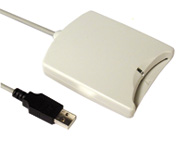
 SCR-3310 reader